
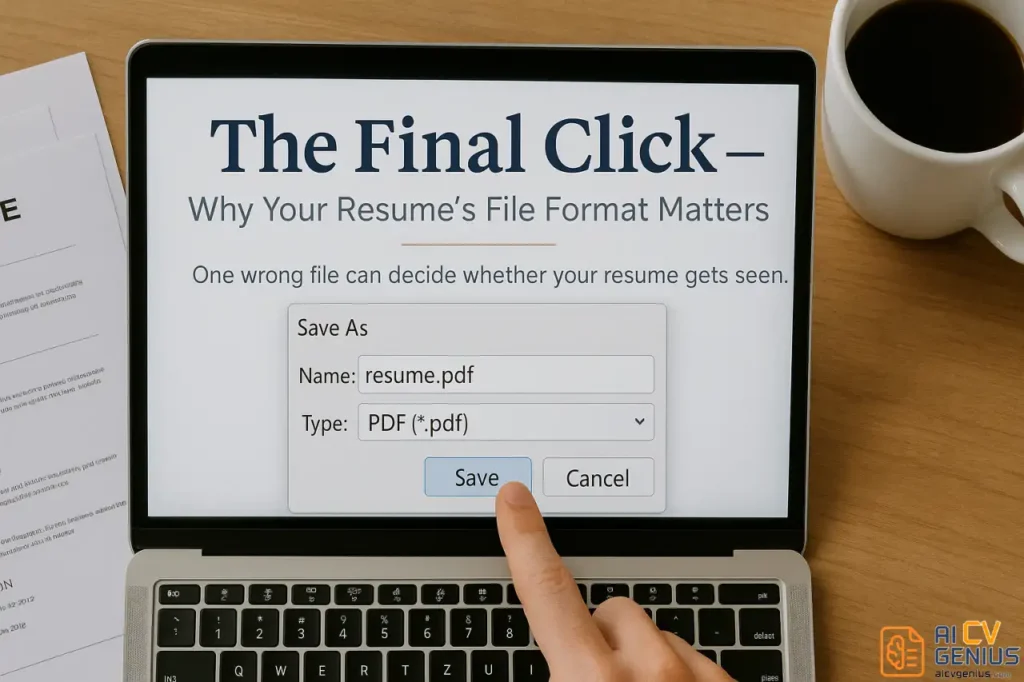
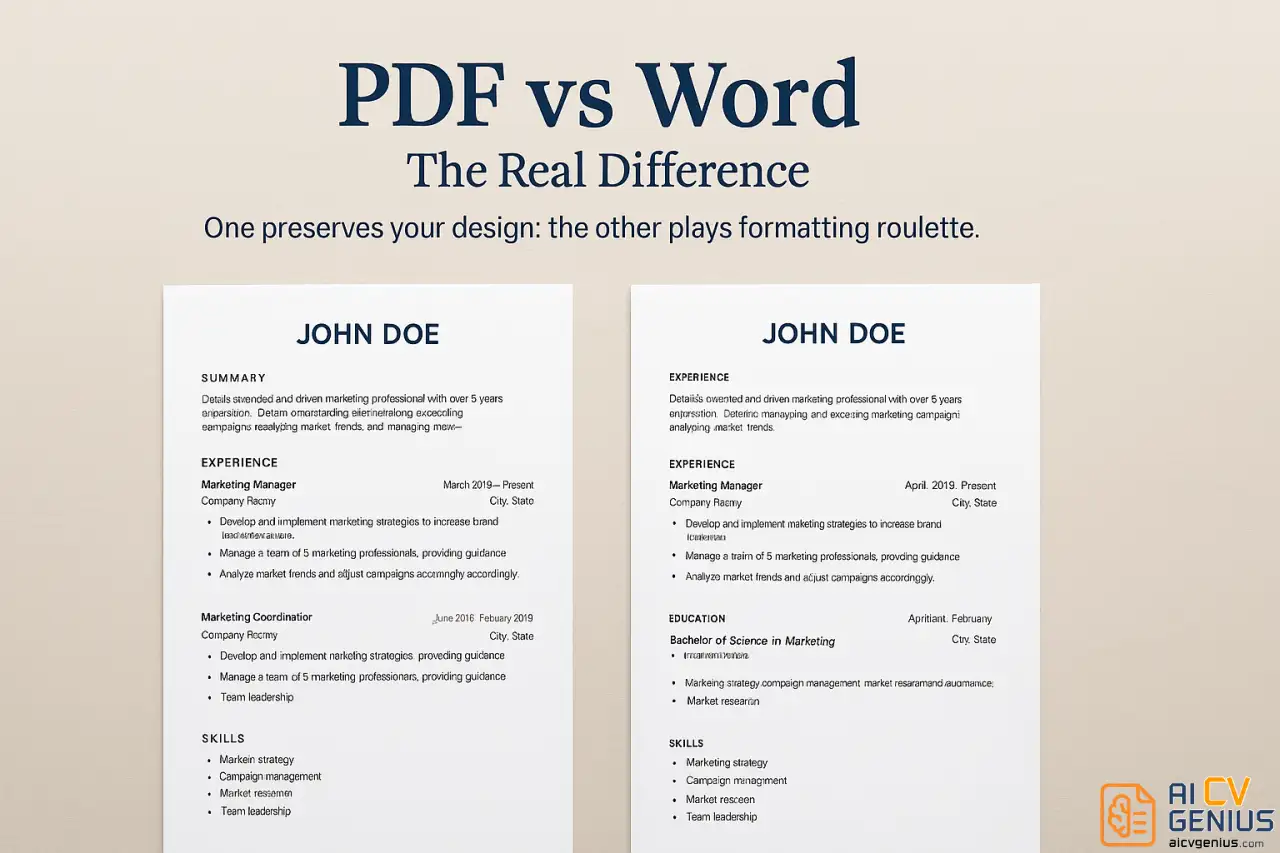
- Why PDF wins: It locks layout and fonts so recruiters see exactly what you designed on any device.
- ATS reality: Modern ATS can read text based PDFs, pass the click and drag test and always follow upload instructions.
- When to use DOCX: If the portal asks for .doc or .docx, submit that format, otherwise default to PDF.
- How to create and edit: Export from Word or Google Docs, edit the source file when possible, or use builders and re export a clean PDF.
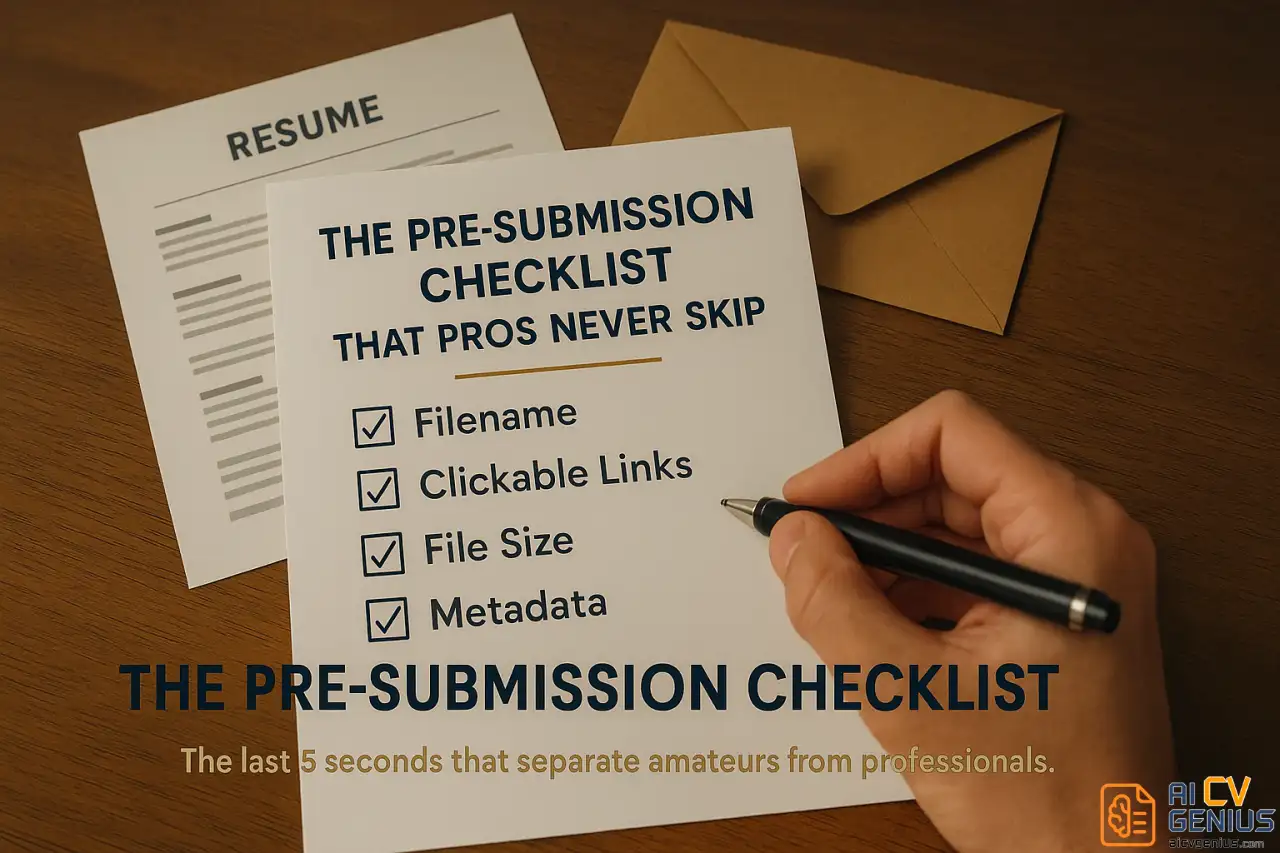
- Final checklist: Use a clean filename, verify links, keep file size small, and remove messy metadata before sending.
Introduction: The PDF Resume Format
The Final Click: Why Your Resume’s File Format is a Make-or-Break Decision
You have spent hours, perhaps even days, perfecting every word. You’ve tailored your achievements, quantified your impact, and chosen a clean, professional design. You are ready to apply for your dream job. You hit “send.” And then… nothing. Silence. The application black hole has claimed another victim. The culprit might not be your experience or your skills; it could be the digital handshake you just sent – your file format.
Before you send your next application, understand this simple truth: the format you choose can determine whether your resume is ever seen by a human eye. A resume templates in PDF format is your career insurance policy. It acts as a digital seal, locking in your layout, preserving your carefully chosen fonts, and ensuring that the document you created with such effort arrives exactly as you intended. No awkward page breaks, no messy font substitutions, no embarrassing layout shifts.
In this definitive guide, we move beyond the simple “use a PDF” advice. We will explore the critical nuances of why it has become the gold standard for job seekers, how to properly create and edit your PDF resume, and how to navigate the one major exception: the Applicant Tracking System (ATS). This is not just about a file type; it’s about successfully clearing the first and most technical hurdle of the job hunt.
Why PDF is the Unquestioned Professional Standard
Sending your resume as a Microsoft Word document (.doc or .docx) is a gamble. It’s like showing up to a formal interview in clothes you haven’t ironed. The recruiter who opens it might be using a Mac while you wrote it on a PC. They might be using an older version of Word, or Google Docs, or a mobile phone. In an instant, your two-page masterpiece explodes into a three-page formatting disaster. The PDF (Portable Document Format) was literally invented to prevent this universal problem.
Its power lies in its name: Portable. A PDF is a snapshot, a high-fidelity image of your document that is device-agnostic. It encapsulates your fonts, images, and layout into a single, self-contained file. Here is precisely why it has become the non-negotiable choice for serious professionals:
- Universal Compatibility: A PDF will look identical whether it’s opened on a Windows PC, a MacBook, an iPhone, an Android tablet, or a Linux machine. This consistency is its greatest strength.
- Professional Presentation: It looks final, polished, and intentional. It signals that you have completed the document and are presenting a finished product, not a draft.
- Preservation of Design: Every design choice you made – the margins, the font sizes, the spacing between sections, the subtle graphic elements – is locked in place.
- Security and Integrity: While not its primary use in this context, a PDF is inherently more secure. It’s more difficult for someone to accidentally (or intentionally) alter your contact information or experience details.
- Mobile-Friendly Viewing: A significant number of recruiters and hiring managers first review resumes on their phones. A PDF renders cleanly on a small screen, whereas a .docx file often fails to load or appears as a jumbled mess, forcing the reader to pinch and zoom.
In short, a PDF resume removes all technical variables. It ensures that what you see on your screen is exactly what the recruiter sees on theirs. In a game of first impressions, it guarantees your first impression is a clean one.
Strategy: PDF vs. Word and the ATS
The Great Debate: PDF vs. .DOCX and the ATS Myth
If PDFs are so perfect, why does this debate even exist? The answer is a single, fear-inducing acronym: ATS (Applicant Tracking System). For years, a persistent myth circulated that these robotic gatekeepers could not read PDFs, automatically rejecting candidates who used them. This is, for the most part, outdated information.
Here’s the reality in 2025 and beyond:
- Old ATS: A decade ago, many less sophisticated ATS systems *did* struggle with PDFs. They couldn’t parse the text, especially if the PDF was created improperly (e.g., as an image). To be safe, they requested .docx files, which are simple, text-based XML files that are easy to scan.
- Modern ATS: Today, any reputable ATS (like Taleo, Workday, or Greenhouse) has no problem parsing a properly created PDF. They can read, index, and categorize your information just as easily as from a Word document.
So, what is a “properly created” PDF? It’s a text-based PDF, not an image-based one. Here is the simple test: If you can click and drag to highlight the text in your PDF, an ATS can read it. If your PDF was made by scanning a piece of paper or by exporting from a graphic design program like Photoshop as a “flat” image, it is invisible. You will be rejected 100% of the time.
This leads to the one, simple rule you must follow:
RULE: Always read the job description’s application instructions.
| If the Application Says… | Your Action (This is the Rule) |
|---|---|
| “Please submit your resume in .doc or .docx format.” | You must submit a .docx file. No exceptions. Failing this simple instruction shows you can’t follow directions. Keep a plain-text version of your resume ready for this scenario. |
| “Please upload your resume (PDF, .doc, .rtf).” | Always choose PDF. They have stated they accept it, so you should use the most professional format that protects your layout. |
| “Upload your resume.” (No format specified) | Always use PDF. This is the new professional default. It shows confidence and protects your presentation. |
| Emailing your resume directly to a person. | Always attach a PDF. It’s the most respectful, professional, and reliable format to send to an individual. |
How-To: Creation, Editing, and Best Practices
How to Create and Edit Your PDF Resume Like a Pro
The “how” is just as important as the “why.” Creating a “broken” PDF is just as bad as sending a Word file. Here is the correct way to do it, whether you are starting from scratch or editing a template.
Option 1: Creating Your Own PDF Resume (The Right Way)
You have finished writing your resume in a text editor. Do not use “Print to PDF” or other strange converters. Use the native “Save As” or “Export” function, which is designed to embed fonts and create high-quality, text-searchable documents.
- In Microsoft Word: Go to File → Save As. In the “File Format” dropdown menu, select PDF. Under “Options,” ensure “Best for electronic distribution and accessibility” is checked.
- In Google Docs: Go to File → Download → PDF Document (.pdf). This will create a perfect, text-based PDF.
- In Apple Pages: Go to File → Export To → PDF… Choose “Best” for image quality.
This process is simple, fast, and creates an ATS-friendly, human-friendly document every time.
Option 2: How to Edit a PDF Resume Template
This is where many job seekers get stuck. You’ve downloaded one of many resume templates in PDF, but you don’t know how to change the placeholder text. You do not need to buy expensive software.
- Check the Source First: Many “PDF templates” are actually downloaded as a .zip file that *contains* a .docx or Google Docs version. Always open that file, edit it as a normal text document, and then use Option 1 to export it as your own final PDF.
- Use an Online Editor (Like a Builder): Platforms like Canva, Zety, or Resume.io are designed for this. You choose a template, type your information into their web interface, and they generate the final, high-quality PDF for you.
- Use Google Drive: This is an excellent free trick. Upload the PDF resume template to your Google Drive. Then, right-click on it and select “Open with → Google Docs.” Google will use Optical Character Recognition (OCR) to convert the PDF into an editable text document. It may not be perfect, but it’s often 95% accurate. You can then make your edits and use File → Download → PDF.
- Use Desktop Software: If you have it, Adobe Acrobat Pro is the most powerful tool, allowing you to directly edit text and move elements. For most users, this is overkill. Modern versions of Microsoft Word can also open and edit PDFs directly (it will convert it to a Word doc, which you can then re-save as a PDF).
The Pre-Submission Checklist: 5 Details That Signal True Professionalism
You have your final PDF. Before you attach it, run this five-point inspection. This is what separates amateurs from professionals.
- The File Name: This is your digital first impression. Do not send
Resume_Final_v3_draft.pdf. It looks disorganized and chaotic. Use the clean, professional standard:Firstname_Lastname_Resume.pdf(e.g.,Jane_Doe_Resume.pdf). - The “Click and Drag” Test: Open the PDF. Can you click your mouse and highlight your name? Can you select a full sentence from your experience section? If yes, you are ATS-friendly. If you can’t (and it just drags a blue box), your file is a useless image. Start over.
- Clickable Links: Did you include your LinkedIn profile URL or a link to your online portfolio? Open the PDF and click them. Do they work? Most modern editors (Word, Google Docs) will auto-generate clickable hyperlinks in the exported PDF, but you must always check.
- File Size: Your resume PDF should be small, ideally under 1MB. A massive file (e.g., 10MB+) suggests you’ve embedded oversized images, which can clog a recruiter’s inbox or be rejected by an upload portal’s size limit. If it’s too big, use a free tool like SmallPDF or Adobe’s online compressor.
- Metadata Check (The Pro Move): This is an expert-level detail. In your PDF viewer (like Adobe Reader), go to File → Properties. Look at the “Title” and “Author” fields. Does the “Author” say “Microsoft Word User” or your company’s name? Does the “Title” say “Resume_Template”? Fix this. Your “Author” should be your full name, and the “Title” should be “Resume – [Your Name].” This is the final 1% of polish.
Pros & Cons Summary: Resume Templates in PDF
To be perfectly balanced, here is the final breakdown of using a PDF format.
| Pros | Cons |
|---|---|
| ✅ Formatting Integrity: Preserves your layout, fonts, and design perfectly across all devices and operating systems. What you see is exactly what they get. | ❌ Editing Difficulty: Harder to make quick text edits than a standard Word file. Requires a proper tool or re-exporting. |
| ✅ Professional Polish: Signals a “final” and intentional document, which appears more professional to recruiters. | ❌ The ATS Exception: Some (mostly older) ATS systems may still specifically require a .docx file. You must follow instructions. |
| ✅ Universal Access: Can be opened by anyone on any device (including mobile phones) without specialized software. | ❌ Creation Errors: An improperly created PDF (e.g., a flat image) is completely unreadable by ATS and is an automatic rejection. |
| ✅ Security: More difficult for a third party to accidentally edit or alter your information. | ❌ File Size: Can become a large file if not optimized or compressed, especially if a template includes heavy graphics. |
Bonus: Best Free PDF Resume Builders and Resources
If you don’t want to design from scratch, a dedicated resume builder is the fastest way to get a polished, ATS-friendly PDF. These tools are built to export perfectly structured, text-based PDFs.
- Canva: Excellent for modern, creative, and visually appealing templates. Just be careful to choose designs that are not too graphic-heavy, as text is still king.
- Resume.io: Known for its simple, recruiter-approved templates and easy-to-use interface. Exports cleanly to both PDF and .docx.
- Kickresume: Offers sleek, professional templates that are highly compatible with ATS. Also provides helpful pre-written phrases.
- Zety: A very popular builder with robust customization tools that guides you through the process and ensures your final PDF is optimized.
- Enhancv: Focuses on visually rich designs that are great for designers, marketers, and creative roles where presentation is key.
For more curated and verified templates, you can check Resume Templates Guides, which often review and test PDF layouts by specific industry and job title.
FAQ and Final Thoughts
Frequently Asked Questions (FAQ) About PDF Resumes
Firstname_Lastname_Resume.pdf (e.g., Mark_Chen_Resume.pdf). Never use generic names like resume.pdf, v2_final.pdf, or a string of numbers. This shows organization and makes it easy for the recruiter to find your file.https://www.linkedin.com/in/yourname) into modern editors like Google Docs or Microsoft Word and press space, they automatically convert it to a hyperlink. When you export to PDF, this link is preserved. Always open your final PDF and click your links (LinkedIn, email, portfolio) to test them before sending.Final Thoughts: Your PDF is Your Digital Handshake
Your resume is not just a document; it’s the single most important piece of marketing you own. Choosing to send it as a PDF is not just about aesthetics – it’s about reliability, professionalism, and showing respect for the recruiter’s time. It’s a small, final step that ensures your first impression isn’t ruined by a technical glitch.
So, the next time you build your resume, choose your template with intention, export to PDF with care, and run through the pre-submission checklist. Send it with the confidence of knowing that the document they open is exactly the masterpiece you intended.
For more detailed design strategies, optimization tips, and career advice, explore resources like a Resume Templates Finder, in-depth Resume Templates Guides, and other Career Resources to make your application stand out for all the right reasons.