
- Word resume templates stay popular because they are easy to edit, widely accessible, and can be ATS-friendly when the layout is simple.
- Using one is straightforward: Download a trusted DOCX, replace every placeholder, keep formatting clean, then save both DOCX (for edits) and PDF (for sending).
- The content matters more than the template: Use strong action verbs, add numbers where you can, and keep everything readable and consistent.
- Most template failures come from avoidable mistakes: Leftover placeholders, over-designing, multi-column or text-box layouts, and sending only DOCX without a PDF backup.
- Choose the template style based on your target industry: Minimalist for conservative roles, modern for most corporate jobs, and creative only when the role truly rewards visual design.
Microsoft Word has been a cornerstone of document creation for decades. Even amidst the rise of specialized online resume builders, Word resume templates continue to offer unparalleled practicality and accessibility for job seekers globally. They are inherently free (assuming Word access), universally editable, function seamlessly on nearly every computer, and, when designed correctly, are highly compatible with critical Applicant Tracking Systems (ATS). Whether you are a student meticulously crafting your first professional narrative or a seasoned executive strategically refreshing your career story, a well-structured Word resume template provides both essential scaffolding and invaluable flexibility.
Why Choose a Resume Template in Word?
Let’s acknowledge the reality: confronting a blank document is often the most significant hurdle in the resume-writing process. A template immediately alleviates this by providing structure and saving considerable time, ensuring you address all critical sections expected by recruiters. But Word templates offer distinct, compelling advantages beyond mere convenience:
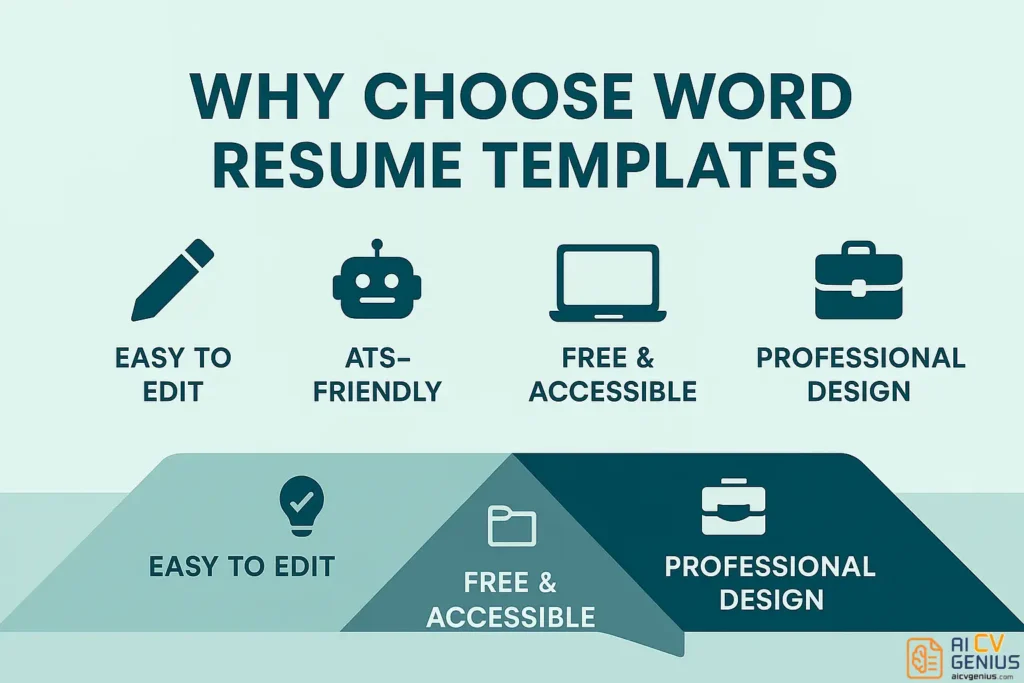
- ✅ Effortless Editing & Customization: Simply open the file, replace the placeholder text with your specific details, and adjust sections as needed – no steep learning curve required.
- ✅ Proven ATS Compatibility: Clean, single-column layouts built within Word are readily parsed by the vast majority of Applicant Tracking Systems, ensuring your qualifications reach human eyes.
- ✅ Ubiquitous Accessibility & Cost-Effectiveness: Microsoft Word is installed on millions of devices worldwide. Furthermore, Word templates (.DOCX files) can be easily opened and edited using free alternatives like Google Docs or LibreOffice.
- ✅ Understated Professionalism: A well-designed Word template conveys competence and polish without resorting to overly flashy or distracting design elements often detrimental in conservative industries.
In essence, Word resume templates perfectly balance professional presentation, user-friendliness, and technical compatibility, making them a reliable choice for nearly any job application.
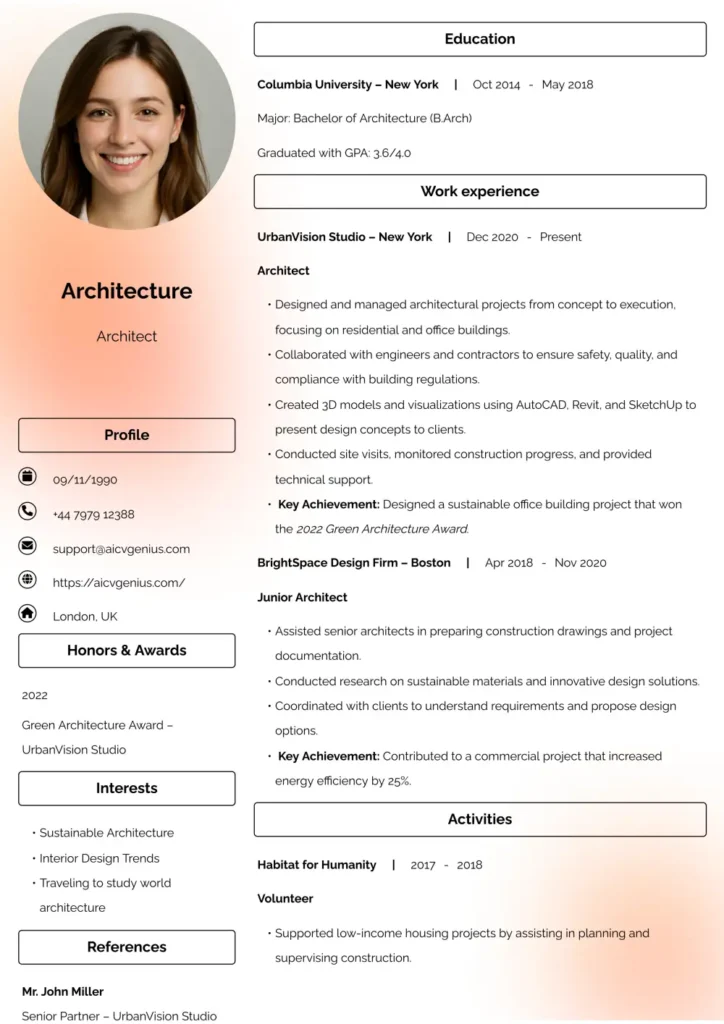
How to Download and Use a Word Resume Template
Getting started with a Word template is straightforward:
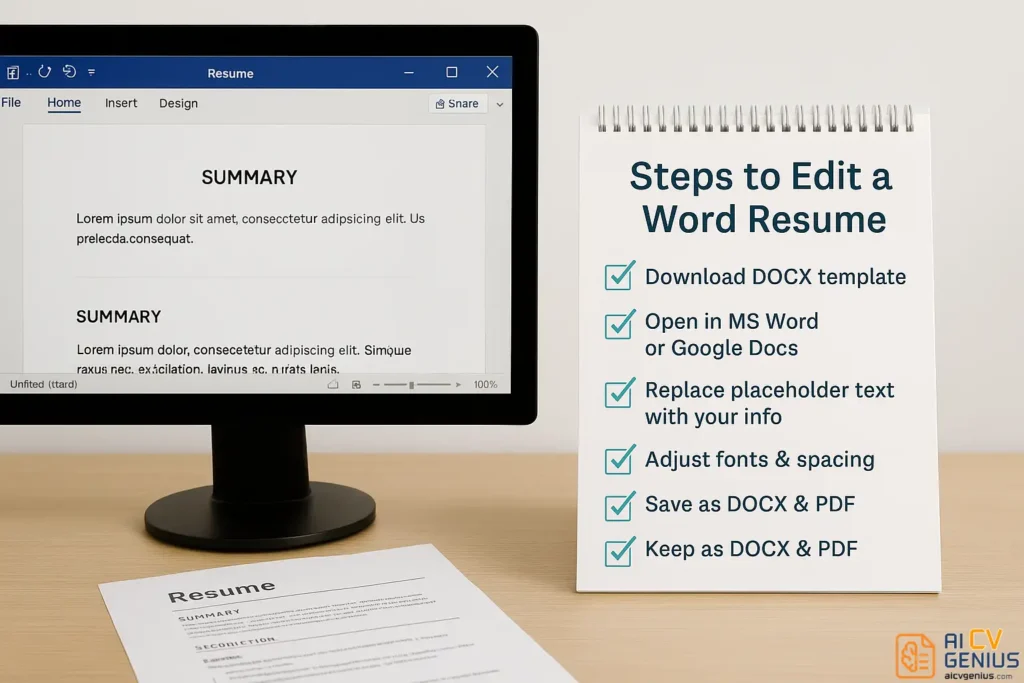
- Download the Template: Obtain the .DOCX file from a reputable source (e.g., Microsoft’s official template gallery, university career centers, trusted career advice websites). Ensure the source is secure.
- Open in Your Preferred Editor: Launch the file directly in Microsoft Word. Alternatively, upload it to Google Drive and open it with Google Docs, or use another compatible word processor like LibreOffice Writer.
- Replace Placeholder Content: Systematically work through each section (Contact Info, Summary, Experience, Education, Skills), replacing the generic text (like “Lorem ipsum”) with your specific, tailored information.
- Customize (Optional & Subtle): While maintaining professionalism, you can adjust fonts (stick to standard options like Calibri, Arial, Georgia), slightly modify font sizes for emphasis, or tweak margins if needed for space. Avoid drastic changes that compromise readability or ATS compatibility.
- Save in Multiple Formats: Always save your edited resume in two essential formats:
- .DOCX: For future editing and sometimes required by specific ATS systems.
- .PDF: As the primary format for submitting applications. PDFs preserve formatting integrity across all devices and platforms, ensuring recruiters see exactly what you designed.
That’s the core process. A Word template liberates you from complex design tasks, allowing you to concentrate entirely on articulating your achievements and qualifications effectively.
Case Study: Anna the Graduate Leveraging Simplicity
Anna, having recently completed her Marketing degree, faced the challenge of creating her first professional resume with limited internship experience. She downloaded a clean, single-column free Word template emphasizing skills and education. She meticulously detailed relevant coursework (e.g., “Digital Marketing Fundamentals,” “Market Research”), described a significant university project where she developed a social media plan for a local non-profit (highlighting Canva and basic analytics skills), and listed transferable skills from her part-time retail job (customer service, cash handling).
Result? Her concise, well-organized one-page resume passed ATS scans and clearly communicated her potential, leading to her first marketing internship interview within three weeks. The simple Word format allowed her relevant skills and academic achievements to stand out without distraction.
Case Study: Mark the Senior Professional Seeking Efficiency
Mark, a Finance Director with 15 years of experience, found his existing resume looked dated and was difficult to update quickly.
He didn’t need complex design features but required a professional, easily scannable format. Instead of starting from scratch or using a complex online builder, he downloaded a modern, two-page professional Word template. Within roughly an hour, he transferred his existing content, updated key achievements with recent quantifiable results (e.g., “Led finance team through successful ERP system migration, improving reporting efficiency by 20%,” “Managed $50M departmental budget, achieving 5% cost reduction Y-o-Y”), and refined his executive summary.
He sent out the polished PDF version with renewed confidence. Within weeks, he received calls from executive recruiters citing the clarity and impact of his updated presentation. The Word template provided the necessary professional structure with minimal fuss.
Best Practices When Editing Word Resumes
To maximize the effectiveness of your Word template, adhere to these guidelines:
Thoroughly Replace All Placeholder Text
Templates often use generic filler text like “Lorem ipsum” or bracketed instructions “[Your Achievement Here]”. Double-check every section to ensure all placeholders are replaced with your unique, accurate details before saving or sending. Overlooking this is a common and easily avoidable mistake.
Prioritize Clarity and Simplicity
Resist the temptation to over-format. Don’t overload the document with numerous colors, multiple font styles, or excessive bolding/italicization. Clean, consistent formatting signals professionalism and enhances readability for both humans and ATS.
Focus on Action Verbs and Quantifiable Impact
The template provides the structure; your content provides the substance. Start bullet points describing your experience with strong action verbs (e.g., Managed, Led, Developed, Optimized, Increased, Reduced). Whenever feasible, quantify your achievements with specific numbers, percentages, or dollar values (e.g., “Increased qualified leads by 15% in Q2,” “Managed a project budget of $250K”).
Maintain Both DOCX and PDF Formats
Always keep an editable .DOCX version for future updates. However, **always** submit your resume as a .PDF file unless the job application specifically requests a Word document. PDFs lock the formatting, ensuring your resume appears exactly as intended on any device, preventing layout shifts that can occur with DOCX files across different Word versions or operating systems.
Common Mistakes with Word Resume Templates to Avoid
While versatile, Word templates can be misused. Steer clear of these frequent errors:
- ❌ Forgetting to Remove Placeholders or Instructions: Submitting a resume still containing generic text or bracketed notes looks unprofessional.
- ❌ Over-Designing: Using excessive colors, unusual fonts, text boxes, or embedded graphics can hinder ATS parsing and distract recruiters.
- ❌ Saving and Sending Only as DOCX: Risking formatting inconsistencies when viewed on different computers or versions of Word. PDF is the standard submission format.
- ❌ Improper Use of Tables or Columns: Complex tables or multi-column layouts can confuse ATS parsers, causing them to misread or jumble your information. Stick to simple, linear structures.
- ❌ Exceeding Recommended Length: Resumes becoming unnecessarily long (typically over one page for entry-level, over two for experienced professionals) due to inefficient use of space or including irrelevant details.
Types of Free Word Resume Templates
Not all resumes serve the same purpose or target audience. Word templates are available in various styles, each suited to different professional contexts:
- Modern Resume Template (Word): Characterized by clean lines, ample white space, and often subtle color accents or unique section dividers. Ideal for roles in tech, marketing, design (if minimalist), and many contemporary corporate environments. Balances style with readability.
- Creative Resume Template (Word): Incorporates more visual elements like icons, distinct layouts (sometimes two-column – use with caution for ATS), or unique typography. Best suited for explicitly creative fields like graphic design, writing, media, or advertising, where visual presentation is part of the qualification.
- Simple / Basic / Minimalist Resume Template (Word): Features a straightforward, often single-column layout with standard fonts and minimal formatting. Highly effective for ensuring ATS compatibility and preferred in very conservative industries (law, finance, government) or for entry-level applications where clarity is paramount.
- Professional / Corporate Resume Template (Word): Typically uses a traditional, conservative design with clear section headings and standard fonts (like Times New Roman or Arial). Ideal for finance, law, academia, healthcare administration, and established corporate roles demanding a formal presentation.
Choosing the style that best reflects your industry norms and personal brand is key.
Comparison: Word Resume Templates vs Other Formats
Understanding the pros and cons helps in choosing the right tool:
| Format | Pros | Cons |
|---|---|---|
| Word (DOCX) Templates | Highly editable, widely accessible (Word/Google Docs/LibreOffice), generally ATS-friendly (if simple layout), often free. | Formatting can sometimes shift between different Word versions or operating systems if not saved as PDF; complex designs hinder ATS. |
| PDF (from Word/Builder) | Preserves formatting perfectly across all devices, professional standard for submission, universally viewable. | Not easily editable without specific software; requires saving from an editable source file (like DOCX). |
| Online Resume Builders (e.g., Zety, Resume.io) | Offer stylish, modern templates; often provide content suggestions and guidance; easy export to PDF/DOCX. | Frequently require paid subscriptions for full functionality (downloading without watermarks); customization options can sometimes be limited compared to Word; ATS compatibility varies by template design. |
| Plain Text (.TXT) | Maximum ATS compatibility (guaranteed parsing). | Lacks visual appeal and formatting entirely; not suitable for human review; usually only required for specific online application fields. |
Case Study: Career Changer Leveraging Word’s Flexibility
Leila aimed to transition from a decade in K-12 teaching into corporate Learning & Development (L&D). Concerned about lacking direct corporate HR experience and wanting to avoid paid services, she downloaded a functional, skills-based free Word template. This format allowed her to prominently feature a detailed “Skills Summary” section at the top, highlighting transferable expertise in curriculum design, adult learning principles, presentation delivery, and stakeholder communication (parents/administration).
She then framed her teaching experience using L&D terminology (e.g., “Developed and delivered differentiated instructional materials for diverse learner groups,” “Assessed learning outcomes using formative and summative evaluations”). Within weeks of applying with her strategically refocused resume, Leila secured interviews for L&D Specialist roles, successfully bridging her experience gap. The flexibility of the Word template was key to reorganizing her narrative effectively.
FAQ: Word Resume Templates
Yes, numerous high-quality Word resume templates are available completely free. Microsoft offers many directly within Word (File > New) and online. Reputable university career services sites, government job portals, and established career advice blogs also provide free, safe downloads. Always ensure you are downloading from a trusted source to avoid malware.
Yes, absolutely. Google Docs has excellent compatibility with .DOCX files. Simply upload the downloaded template file to your Google Drive, right-click, and select “Open with > Google Docs.” You can then edit the content and formatting much like you would in Word. Remember to download the final version as both .DOCX and .PDF from Google Docs.
No, not automatically. ATS-friendliness depends heavily on the **template’s design**, not just the file format. Templates with clean, single-column layouts, standard section headings (like “Work Experience,” “Education,” “Skills”), common professional fonts, and minimal use of tables, text boxes, or graphics are generally ATS-friendly. Avoid complex visual elements that can confuse parsing software.
Saving as a PDF locks the formatting and layout. This ensures that your resume looks exactly the same to the recruiter or hiring manager, regardless of the device, operating system, or software version they use to open it. Sending a .DOCX file risks having fonts, margins, or spacing appear incorrectly, creating an unprofessional impression. PDF is the universal standard for document sharing.
The standard guidelines apply: one page is strongly recommended for students, recent graduates, and professionals with less than approximately 7-10 years of relevant experience. Two pages are acceptable and often necessary for mid-career to senior professionals with extensive, relevant histories and significant accomplishments. Focus on relevance and impact, not just filling space.
Yes, customization is a key benefit. However, exercise restraint and maintain professionalism. Stick to 1-2 easy-to-read, standard professional fonts (e.g., Calibri, Arial, Georgia, Times New Roman). Use color sparingly, perhaps a single subtle accent color (like navy blue or dark grey) for headings or section dividers, if desired. Avoid bright, distracting colors or overly decorative script fonts.
Standing out comes from the quality and impact of your content, not from flashy design. Focus on:
- Tailoring your resume specifically to each job description using relevant keywords.
- Writing compelling bullet points under your experience section that showcase quantifiable achievements and results using strong action verbs.
- Ensuring flawless grammar, spelling, and consistent formatting throughout.
- Choosing a clean, professional, and easily scannable layout that highlights your key qualifications quickly.
Yes. Microsoft Word for Mac fully supports .DOCX templates. Additionally, Apple’s Pages application can open .DOCX files, allowing you to edit them, although minor formatting adjustments might occasionally be needed due to differences between the programs. Saving the final version as a PDF ensures cross-platform compatibility.
Final Thoughts: Simplicity as a Strategic Advantage
Job seekers sometimes dismiss Word resume templates, perceiving them as overly basic or lacking modern flair. However, this inherent simplicity is precisely their strategic advantage. They offer unparalleled professionalism, guaranteed ATS compatibility (when designed well), universal editability, and complete cost-effectiveness for any career stage.
Utilizing a robust resume template in Word frees you from grappling with complex design software or restrictive online builders, allowing you to dedicate your valuable time to the most critical task: articulating your unique story, skills, and quantifiable achievements persuasively. Download a suitable template, edit it meticulously, and focus squarely on conveying your value proposition.
Whether you are embarking on your first job search or navigating a senior-level career transition, Word templates remain one of the most dependable and effective tools available to help you secure interviews and advance your career.