
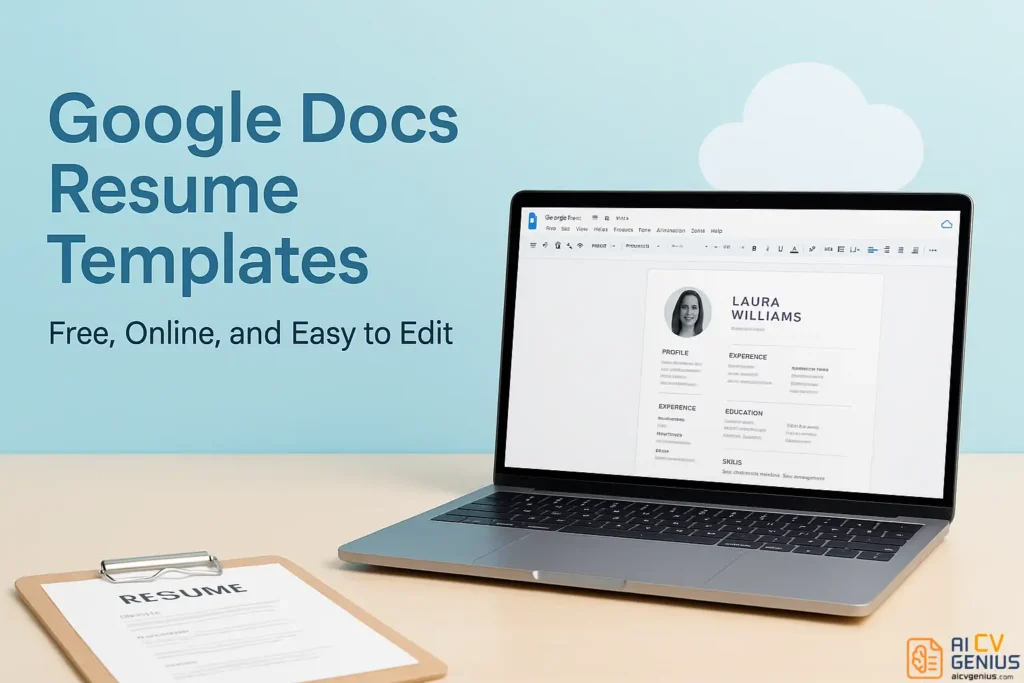
- Google Docs resume templates are popular for one reason: Your resume stays accessible anywhere, auto-saves, and avoids version chaos.
- The core advantages are practical: Free templates, easy collaboration and comments, simple exporting to PDF or DOCX, and built-in version history.
- Using them is straightforward: Open Template Gallery, pick a Resume layout, replace placeholders carefully, keep formatting changes minimal, then download as PDF for submissions.
- Template choices map to industry style: Modern Writer and Swiss are clean and ATS-friendly, Serif fits conservative fields, Coral and Spearmint add light color for roles that allow a bit of personality.
- Avoid the common mistakes: Do not submit an editable Doc link, do not leave placeholder text, do not add complex formatting or unusual fonts, and always check sharing permissions only if you must share a link.
For decades, Microsoft Word dominated resume creation. Today, however, a powerful, free alternative has emerged: Google Docs resume templates. Why the shift? Accessibility and convenience are key drivers. Google Docs operates entirely in the cloud, meaning your resume is accessible from any device with an internet connection – no software installation, USB drives, or version control headaches required.
Whether you are finalizing details on your laptop or making a quick edit via your smartphone just before an interview, your resume is always current and available. This seamless experience makes Google Docs an increasingly popular choice for modern job seekers.
Why Choose Google Docs Resume Templates?
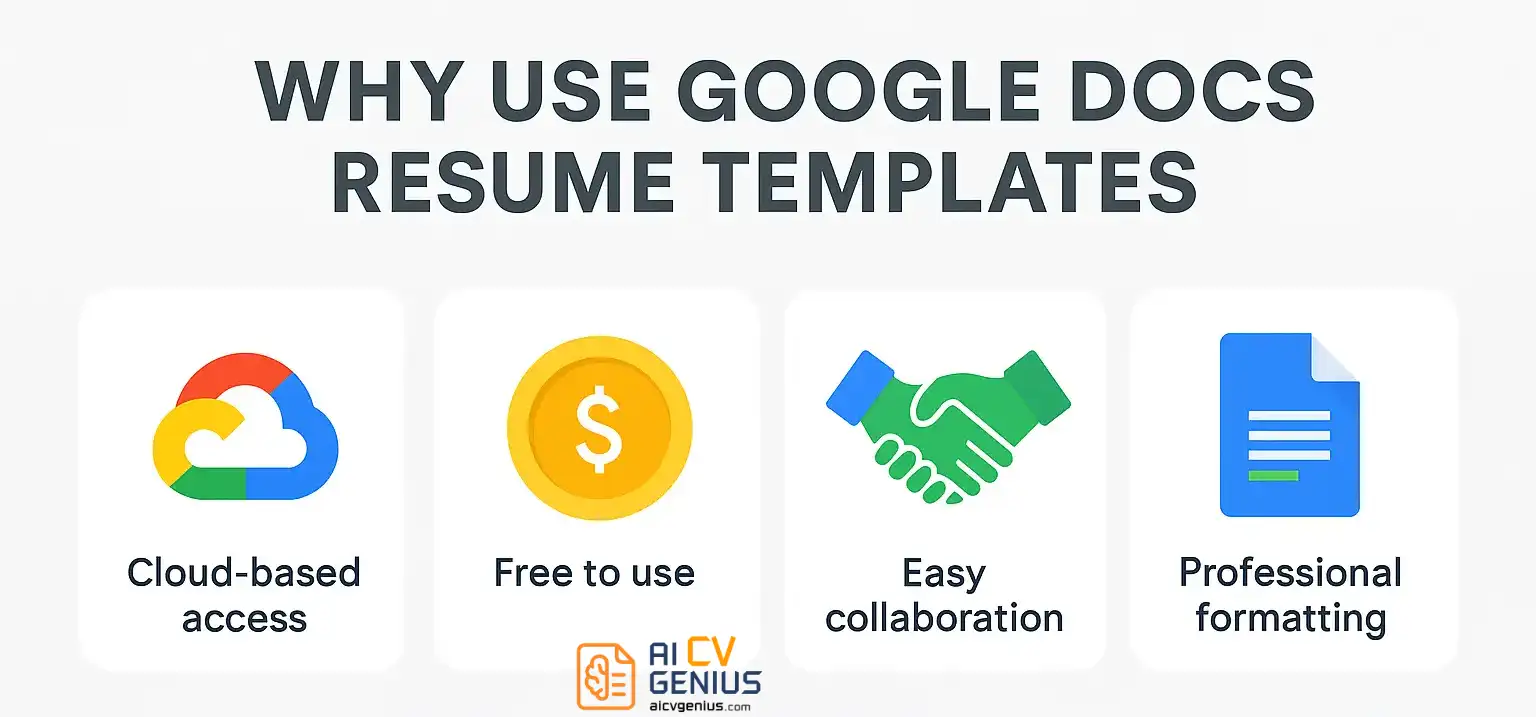
Beyond cloud accessibility, Google Docs offers several compelling advantages for resume creation:
- ✅ Completely Free: Access professional resume templates without needing paid software licenses or subscriptions. All you need is a free Google account.
- ✅ Effortless Collaboration: Share your resume draft with mentors, career coaches, or peers using a simple link. Receive real-time feedback and suggestions directly within the document.
- ✅ Built-in Professional Designs: Google Docs provides a curated selection of clean, ATS-friendly templates suitable for various industries and career levels.
- ✅ Flexible Export Options: Easily download your finished resume as a universally compatible PDF (preferred for applications), a DOCX file for specific requirements, or even share a view-only link if needed.
- ✅ Automatic Saving & Version History: Never lose your work. Google Docs saves changes automatically and allows you to revert to previous versions if necessary.
In short, Google Docs democratizes professional resume creation, offering a platform that is accessible, collaborative, cost-effective, and aligned with modern job application needs.
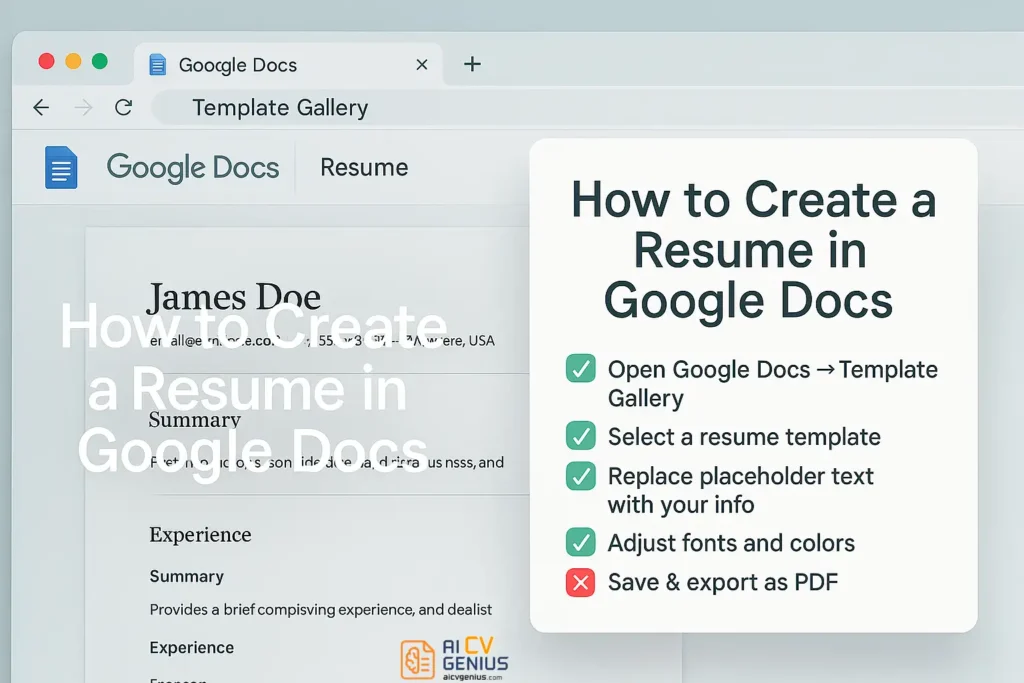
How to Access Google Docs Resume Templates
Finding and using the built-in templates is incredibly simple:
- Open Google Docs in your web browser.
- At the top of the page, click on Template Gallery. (If you don’t see it, click the “New” button, then the arrow next to “Google Docs,” and select “From a template.”)
- Scroll down until you find the dedicated “Resumes” section.
- Browse the available designs (e.g., Modern Writer, Serif, Swiss, Coral, Spearmint).
- Click on the template that best suits your style and industry. It will open as a new document.
- Begin replacing the placeholder text with your own information.
The entire process takes only seconds, requiring no downloads or complex setup.
Case Study: Emily the Student Seeking Internships
Emily, a college sophomore applying for summer internships, didn’t have Microsoft Word installed on her personal Chromebook. She needed a professional resume quickly and without cost. Using Google Docs, she selected the clean, minimalist Swiss resume template. She easily populated it with her relevant coursework, detailed descriptions of two significant class projects (highlighting teamwork and research skills), her part-time job experience (emphasizing customer service and responsibility), and volunteer activities.
Within a single afternoon, Emily crafted a polished, one-page resume. She then shared the document link with her university’s career advisor for feedback directly within Google Docs before exporting the final version as a PDF for her applications. The accessibility and ease of use were critical for her success.
Case Study: Daniel the Freelancer Managing Multiple Versions
Daniel, a freelance graphic designer, needed to maintain several versions of his resume tailored for different client types and industries (e.g., one focusing on corporate branding, another on web design for startups). Keeping track of multiple Word files became cumbersome.
By switching to Google Docs, he created a master resume document containing all his projects and experiences. For each new client pitch, he simply made a copy of the master, quickly deleted irrelevant sections, customized the summary, and exported a tailored PDF.
He organized these versions neatly within Google Drive folders. Furthermore, when collaborating with recruiters or clients needing quick access, he could instantly share a view-only link instead of attaching large files, significantly streamlining his workflow and enhancing his professional responsiveness.
Popular Google Docs Resume Templates: A Quick Guide
Google Docs offers several well-designed built-in templates suitable for various needs:
- Modern Writer: Features clean lines, distinct section breaks, and ample white space. Excellent for professional roles across many industries, including business, tech, and administration. Highly readable and ATS-friendly.
- Serif: Employs classic serif fonts (like Georgia or Times New Roman) for a more traditional, formal appearance. Ideal for conservative fields such as law, finance, academia, or government positions.
- Swiss: Known for its minimalist, elegant design inspired by Swiss typography. Uses a clean sans-serif font and relies heavily on structure and white space. Great for tech, consulting, design (if kept simple), and roles valuing clarity.
- Coral / Spearmint: These templates introduce subtle color accents in headings or section dividers, offering a slightly more creative yet still professional look. Popular choices for marketing, communications, non-profit, or creative fields where a touch of personality is welcome.
Choose the template style that best aligns with the industry norms and company culture you are targeting.
Step-by-Step: Creating Your Resume in Google Docs
Follow these simple steps to build your resume using a Google Docs template:
- Open Google Docs and navigate to the Template Gallery.
- Select a resume template that fits your preferred style and industry (e.g., Modern Writer, Swiss).
- Systematically replace all placeholder text within each section (Contact Information, Summary/Objective, Work Experience, Education, Skills, Projects, etc.) with your accurate, tailored details.
- Customize formatting subtly if desired (e.g., adjust font size slightly for headings, ensure consistent spacing). Avoid drastic changes that could impact ATS compatibility. Stick to professional fonts.
- Utilize Google Docs’ sharing features: Send an editable link (‘Editor’ access) to trusted mentors, friends, or career advisors for feedback and suggestions.
- Once finalized and proofread meticulously, go to File > Download > PDF Document (.pdf). Always submit the PDF version to employers unless specifically instructed otherwise.
Best Practices for Optimizing Your Google Docs Resume
To ensure your Google Docs resume is effective, keep these tips in mind:
Prioritize Clarity and Simplicity
Avoid cluttering your resume with excessive colors, multiple font styles, or unnecessary graphic elements. Use white space strategically to guide the reader’s eye. A clean, easily scannable design is crucial for both human recruiters spending seconds on review and ATS software parsing the content.
Use Standard Section Headings
Stick to conventional, easily recognizable headings like “Work Experience,” “Education,” “Skills,” “Projects,” and “Certifications.” Applicant Tracking Systems are programmed to look for these standard terms. Avoid overly creative or ambiguous titles like “My Journey” or “Tools I Master.”
Leverage Real-Time Collaboration Wisely
Share your document link (with ‘Commenter’ or ‘Editor’ permissions) with trusted advisors for feedback. Address comments directly within the document, making the revision process efficient. Remember to set the final version back to ‘Viewer’ access or rely on the PDF export for applications.
Always Export and Submit as PDF
While editing in Google Docs is convenient, submitting the final resume as a PDF is non-negotiable unless a DOCX file is explicitly requested. PDFs lock the formatting, ensuring your resume appears exactly as intended, regardless of the recipient’s device or software.
Organize Tailored Versions Effectively
Use Google Drive’s folder system to create and manage multiple versions of your resume tailored for different job applications. Name files clearly (e.g., “Resume_Marketing_Manager_CompanyName_Date.pdf”). This prevents sending the wrong version and makes tracking applications easier.
Comparison: Google Docs vs Microsoft Word Resumes
Both platforms are viable options, but they cater to slightly different needs:
| Feature | Google Docs | Microsoft Word |
|---|---|---|
| Accessibility | Excellent: Cloud-based, accessible via any web browser on any device. Ideal for users without installed software. | Good: Requires installed software (desktop or mobile app), or web version (Office 365). Less seamless across devices without subscription. |
| Cost | Completely free with a Google account. | Requires a paid Microsoft Office license or Microsoft 365 subscription for full functionality. Free web version has limitations. |
| Collaboration | Superior: Real-time co-editing, commenting, and suggestion features are built-in and intuitive. | Possible via OneDrive and Track Changes, but generally less fluid and real-time than Google Docs. |
| Export Options | Excellent: PDF, DOCX, ODT, TXT, EPUB, Web Page. Easy sharing via link. | Excellent: PDF, DOCX, ODT, TXT, Web Page. Standard file formats. |
| Built-in Templates | Good: Offers a solid selection of basic, professional resume templates. | Very Good: Typically offers a wider variety of built-in templates, including more complex or visually diverse designs (though simpler is often better for ATS). |
| Offline Access | Possible: Requires enabling offline mode in Google Drive settings beforehand. | Excellent: Desktop software works fully offline by default. |
The best choice often depends on your existing software access, collaboration needs, and preference for cloud versus desktop workflows.
Case Study: Streamlining Feedback with a Career Coach
Sarah, a career coach, previously managed client resume reviews through endless email chains involving multiple Word document attachments (e.g., “Resume_v3_final_final.docx”). This process was inefficient and prone to version control issues. She transitioned her clients to using Google Docs templates. Now, she provides feedback using the ‘Suggesting’ mode and comments directly within their shared document. Clients can review suggestions, accept or reject changes, and ask clarifying questions in real-time. This collaborative, centralized approach significantly reduced turnaround times for resume revisions, improved communication clarity, and resulted in a less stressful experience for both Sarah and her clients.
Common Mistakes to Avoid with Google Docs Resumes
While user-friendly, be mindful of these potential pitfalls:
- ❌ Forgetting to Export as PDF: Sending a direct Google Docs link or the editable document itself looks unprofessional and risks formatting issues on the recipient’s end. Always send a polished PDF.
- ❌ Leaving Placeholder Text: Accidentally leaving generic template text (e.g., “[Your Name Here],” “Lorem ipsum”) is a critical error suggesting lack of attention to detail. Proofread meticulously.
- ❌ Using Overly Complex Formatting or Non-Standard Fonts: While Google Docs allows customization, stick to simple layouts (preferably single-column) and widely available professional fonts (Arial, Calibri, Georgia, etc.) to ensure ATS compatibility. Avoid tables, text boxes, or excessive colors.
- ❌ Incorrect Sharing Permissions: If you *must* share a link (e.g., for a portfolio section), double-check that the permissions are set to “Anyone with the link can view.” Setting it incorrectly means the recruiter cannot access your document. Sending a PDF avoids this issue entirely for the main resume.
Advanced Tips for Google Docs Resumes
Elevate your Google Docs resume with these power-user techniques:
- Explore Google Fonts: While standard fonts are safe, Google Fonts offers a vast library of professional, web-friendly fonts (like Lato, Roboto, Montserrat) that can give your resume a subtle modern edge while maintaining readability. Ensure the font is widely compatible.
- Create a Master Resume Document: Maintain a comprehensive “master” Google Doc containing all your experiences, projects, skills, and detailed achievements. For each specific job application, make a copy of this master document and then strategically delete or tailor content to create a highly targeted resume.
- Use Hyperlinks Strategically: Embed relevant hyperlinks directly into the text for your LinkedIn profile, personal portfolio website, specific project repositories (GitHub), or online publications. Ensure links are professional and directly support your qualifications.
- Leverage Version History: Use Google Docs’ built-in version history (File > Version history > See version history) to track changes, compare different drafts, or revert to an earlier version if needed during the editing process.
- Utilize Add-ons (Carefully): Explore Google Workspace Marketplace add-ons designed for resume writing (e.g., grammar checkers like Grammarly, template enhancers). Use them judiciously, always prioritizing content quality and ATS compatibility over excessive features.
FAQ: Google Docs Resume Templates
Yes, the templates built into Google Docs are entirely free to access and use with a standard Google account. There are no hidden costs or subscriptions required for the templates themselves.
Yes, absolutely. Employers care about the content, clarity, and professionalism of your resume, not the specific tool used to create it. As long as you export the final version as a clean, professional PDF, it will be widely accepted.
Yes. You can enable offline access for Google Docs through your Google Drive settings. This allows you to create and edit documents even when you are not connected to the internet. Changes will sync automatically once you reconnect.
Generally, yes, especially the simpler built-in templates (like Modern Writer or Swiss) that use standard layouts and fonts. However, ATS-friendliness depends more on how you use the template. Avoid complex formatting like tables, text boxes, columns, headers/footers for critical info, and non-standard fonts to ensure optimal parsing.
The standard guidelines apply regardless of the tool used: One page is strongly recommended for students, recent graduates, and professionals with less than approximately 7-10 years of relevant experience. Two pages are acceptable for mid-career to senior professionals with extensive, relevant histories. Focus on relevance and impact.
It is strongly recommended to always send a PDF attachment. Sharing a direct link can appear less professional, introduces potential issues with viewing permissions, and doesn’t guarantee the employer sees the final, intended version. PDF is the standard professional format.
The Modern Writer and Swiss templates are often cited as excellent choices. They are clean, minimalist, highly readable, use standard sans-serif fonts, and follow a single-column structure that is reliably ATS-friendly. The Serif template is a good choice for more traditional industries.
Yes, Google Docs allows you to insert images, shapes, and customize headers/footers. However, exercise extreme caution. Keep any additions minimal, professional, and ensure they do not interfere with the main text flow or ATS parsing. Simple text-based headers are generally safer and more effective.
Final Thoughts: Accessibility Meets Professionalism
Crafting a compelling resume is fundamental to accessing career opportunities – and Google Docs significantly lowers the barrier to entry for creating professional documents. With Google Docs resume templates, job seekers gain the power to build, edit, collaborate on, and share their career narratives seamlessly, anytime and anywhere, without incurring software costs or technical complexities. These templates offer a valuable combination of free accessibility, user-friendly flexibility, and designs that meet professional standards suitable for nearly any industry.
Whether you are a student making your first foray into the job market, a freelancer managing diverse applications, or an experienced professional seeking efficient updates, Google Docs provides the essential tools to create a polished resume that effectively captures attention. Embrace the simplicity, leverage the collaborative features, start with a well-structured template, meticulously tailor your content, and confidently take your next career step.