
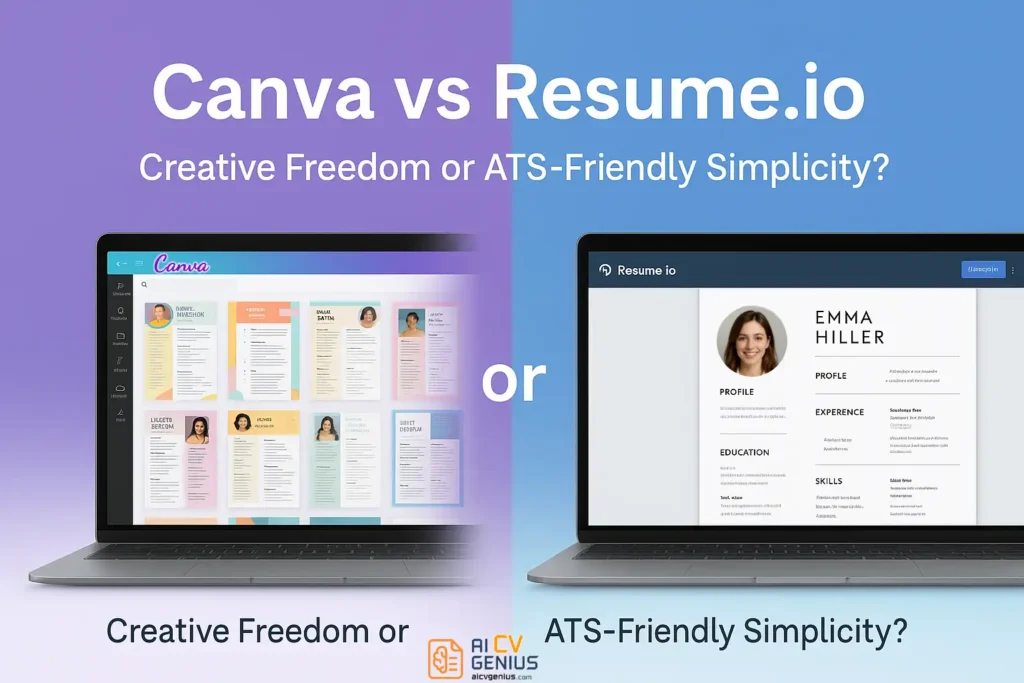
- Core difference: Canva wins on design freedom and branding, Resume.io wins on ATS-safe structure and speed.
- ATS reality: Canva templates can break parsing if they use many text boxes or graphics, Resume.io is built to stay machine-readable.
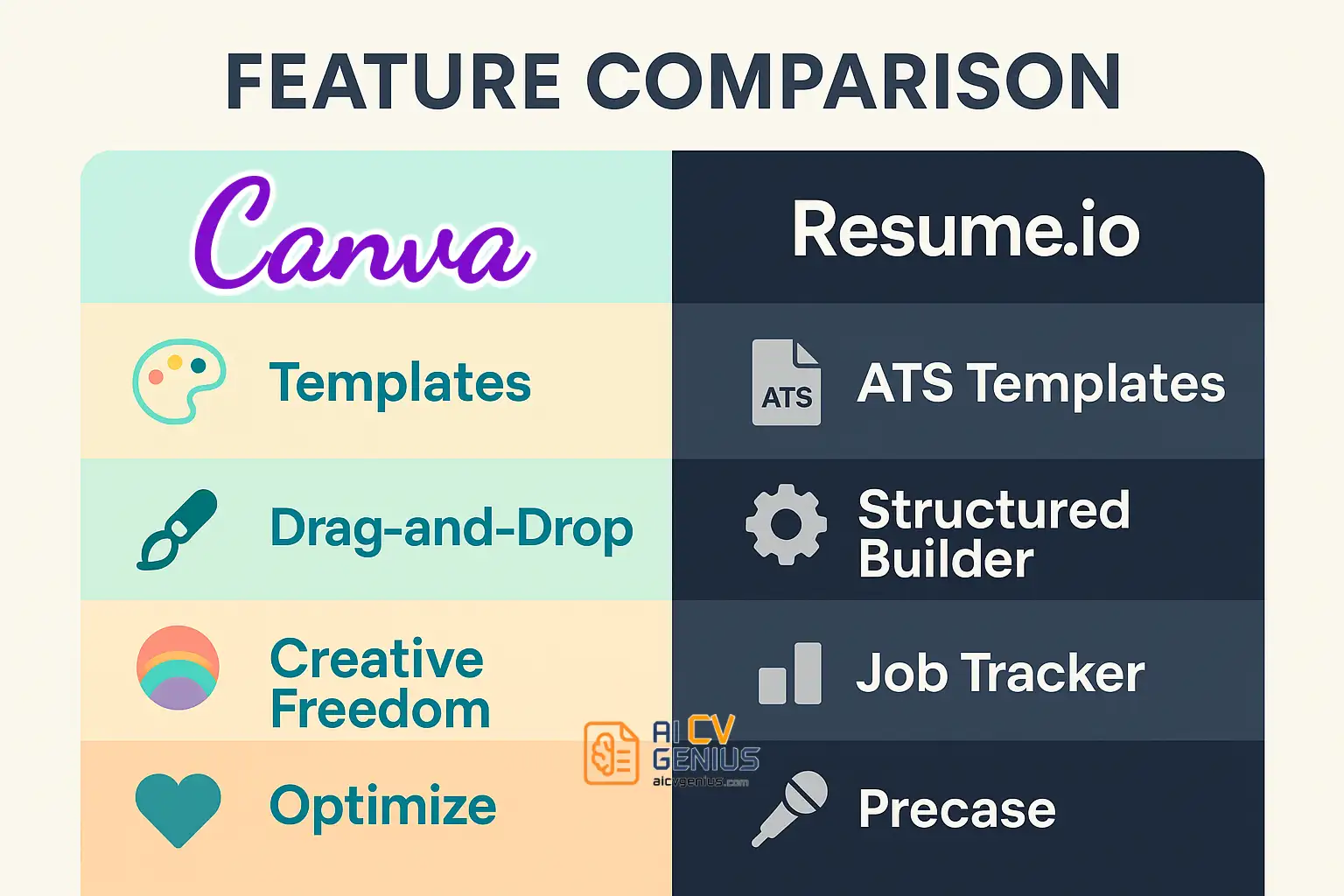
- Templates and workflow: Canva has 1000+ customizable designs, Resume.io has fewer layouts but a guided builder that keeps formatting consistent.
- Pricing and exports: Canva offers free and Pro plans with PDF export, Resume.io is subscription-based with PDF and DOCX plus extras like job tracking.
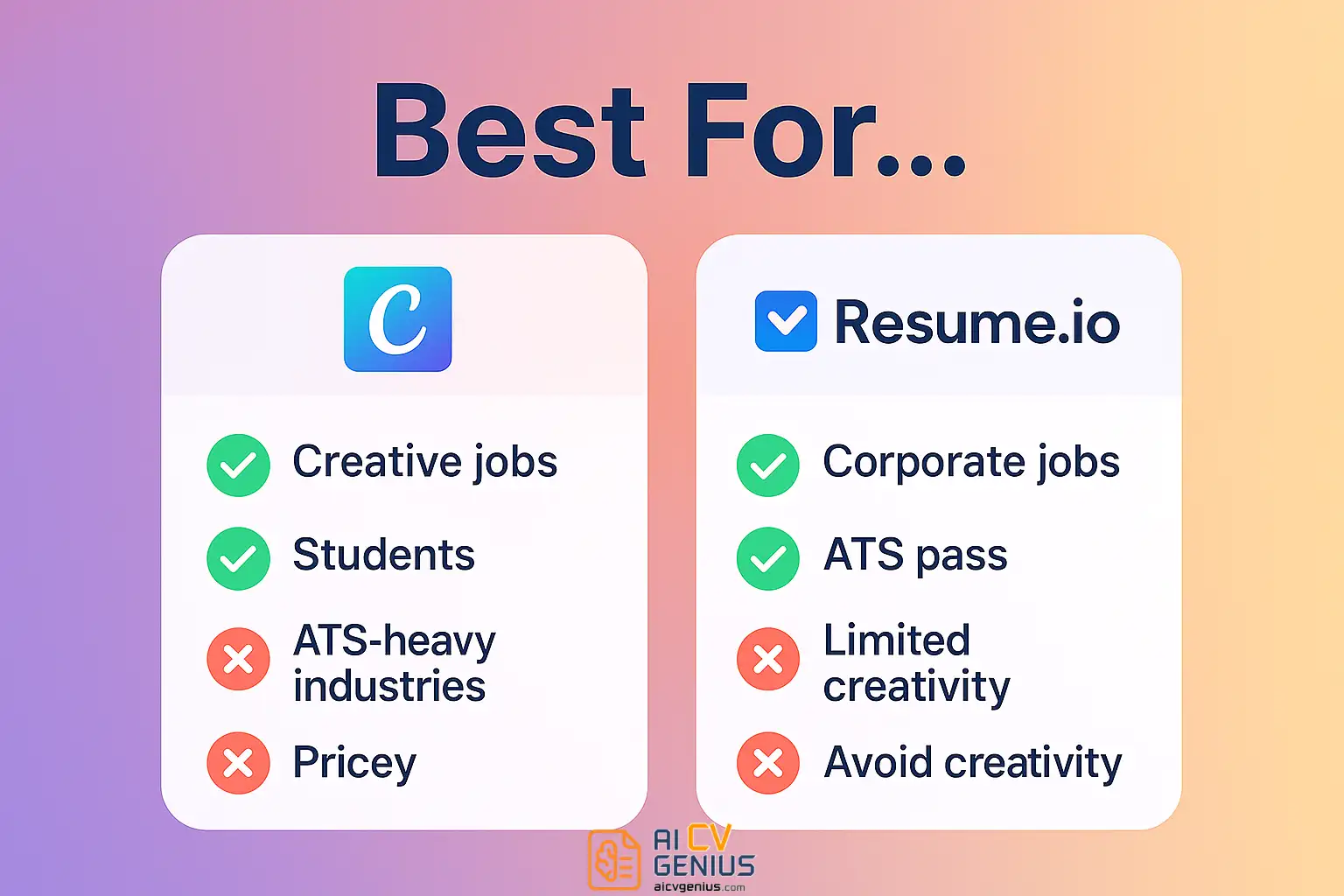
- Best choice: Use Resume.io for corporate and ATS-heavy applications, use Canva for creative roles and networking, or run a hybrid setup with both.
The hunt for the perfect resume builder has never been more intense. Job seekers today don’t just want a document – they want a tool that balances creativity with ATS compatibility. Two platforms dominate this conversation: Canva and Resume.io. One is a global design powerhouse with thousands of customizable templates. The other is a focused, streamlined resume builder engineered to pass applicant tracking systems. Which one is better?
In this extended review, we’ll explore Canva vs Resume.io from every angle: features, usability, pricing, case studies, expert strategies, and long-term value. By the end, you’ll know exactly which one deserves your time – and your trust.
The Resume Builder Landscape
Ten years ago, resumes were built in Microsoft Word and sent directly to recruiters. Today, more than 90% of large companies use Applicant Tracking Systems (ATS) to scan and filter applications before a human sees them. This means your resume must balance two opposing needs:
- Visual design: to impress human eyes and stand out in a crowded inbox.
- Machine readability: to make sure ATS systems don’t reject it automatically.
This tension explains the popularity of Canva vs Resume.io. Canva dominates the “make it look good” side. Resume.io dominates the “make it pass ATS” side. Let’s see what each really offers.
Canva: The Creative Giant
Template Library
Canva boasts over 1,000 resume templates, dwarfing most competitors. These range from bold infographics to clean, one-page layouts. Every template is drag-and-drop customizable. Change colors, fonts, icons, and add visuals – it’s like designing a mini-portfolio.
Design Ecosystem
Unlike traditional resume tools, Canva is part of a wider design suite. You can create not only resumes, but also matching cover letters, business cards, and portfolios. If branding consistency matters to you, Canva makes it easy.
Step-by-Step Walkthrough: Building a Resume on Canva
- Log into Canva (free or Pro account).
- Search “Resume” in the template library.
- Select a design that reflects your industry (creative vs professional).
- Edit text boxes with your information – name, work history, education, skills.
- Add icons, colors, or design flourishes, but avoid overloading graphics.
- Export as PDF (never PNG/JPG for resumes).
The Catch: ATS Limitations
Here’s the problem: Canva wasn’t built for ATS. Many templates use multiple text boxes, graphics, or background elements that confuse scanners. Recruiters may never see your resume, no matter how good it looks. Canva is safest for networking, creative industries, or direct submissions to humans.
Resume.io: The ATS Workhorse
Template Collection
Resume.io offers a smaller set of templates – about 25+ layouts – but every one is optimized for ATS. They are structured, minimal, and text-first. That means less design flair, but higher success rates in corporate applications.
Guided Builder
Instead of a blank canvas, Resume.io guides you through structured forms. Fill in your work history, education, and skills, and the system arranges everything automatically. It’s fast and foolproof, perfect for job seekers who don’t want to wrestle with design.
Step-by-Step Walkthrough: Building a Resume on Resume.io
- Create a Resume.io account.
- Pick a professional or modern template.
- Fill in structured fields: Experience, Education, Skills, Summary.
- Reorder sections if needed.
- Export as PDF or DOCX (safe for ATS).
Extra Features
Resume.io also includes a cover letter builder and a job tracker. These aren’t glamorous, but they’re highly practical – especially if you’re applying to dozens of positions.
Side-by-Side Comparison
| Feature | Canva | Resume.io |
|---|---|---|
| Templates | 1000+ (creative) | 25+ (professional) |
| ATS Compatibility | Mixed, often risky | High, built for ATS |
| Ease of Use | Drag-and-drop editor | Guided form builder |
| Customization | Unlimited creative freedom | Limited, structured |
| Export | PDF, PNG, JPG | PDF, DOCX |
| Extra Tools | Design suite (graphics, brand kits) | Cover letter builder, job tracker |
| Pricing | Free / Pro $12.99 per month | $24.95/month or $74.95/year |
User Personas: Who Wins?
The Student
Emma just graduated. She needs a simple, professional resume fast. Canva overwhelms her with design choices, so she chooses Resume.io’s step-by-step builder.
️Winner: Resume.io.
The Designer
Amira applies to creative studios. She wants her resume to showcase her style. Canva’s bold designs give her an edge.
️Winner: Canva.
The Finance Analyst
Robert applies to Fortune 500 firms. His Canva resume with charts fails ATS. Resume.io’s structured format passes easily.
️Winner: Resume.io.
The Freelancer
Sofia wants her resume to double as a personal brand asset. Canva lets her create resumes she also shares on social media.
️Winner: Canva.
The Career Changer
David moves from teaching to HR. He builds two versions: a Canva resume for networking, and a Resume.io resume for ATS.
️Winner: Both.
Case Studies Expanded
Case Study: The Fail – Alex used a Canva infographic resume for corporate jobs. Despite great credentials, he heard nothing back. Later, he discovered ATS systems couldn’t parse the graphics. After switching to Resume.io, he got interviews within weeks.
Case Study: The Win – Maria, a UX designer, applied with a colorful Canva resume. Recruiters loved it, even mentioning the design in her interviews. She landed her dream role at a startup.
Case Study: The Hybrid Approach – Liam, a career changer, sent Resume.io resumes to Fortune 500 companies but used Canva resumes for networking events. This two-pronged strategy gave him both reach and personality.
Tips & Strategies
How to Use Canva Safely
- Stick to simple templates with minimal graphics.
- Avoid text embedded in images.
- Always export as PDF with selectable text.
How to Maximize Resume.io
- Take advantage of built-in job description suggestions.
- Use the cover letter builder for consistency.
- Keep multiple versions of your resume tailored to different roles.
The Smartest Strategy
Use Resume.io for ATS-heavy online applications. Use Canva for networking, creative industries, and LinkedIn uploads. Combining both gives you maximum flexibility.
Canva & Resume.io | Pros & Cons
| Canva | Resume.io |
|---|---|
| ✅ Massive template tdbrary | ✅ ATS-optimized templates |
| ✅ Free plan strong | ✅ Easy, fast builder |
| ✅ Great for creative branding | ✅ Extra tools (cover letter, job tracker) |
| ❌ Weak ATS compatibitdty | ❌ Smaller template tdbrary |
| ❌ No resume-specific tools | ❌ More expensive than Canva |
FAQ
Final Verdict
Canva vs Resume.io isn’t about a single winner – it’s about context. Canva gives unmatched design freedom, perfect for creatives, freelancers, and students who want visually engaging resumes. Resume.io provides reliability and ATS-proof templates, perfect for corporate roles and online applications. The smartest move is to combine them: one resume for the robots, one resume for the humans. That way, you don’t just look good – you actually get seen.