
- Canva makes resume design fast and flexible: Drag-and-drop templates let you build a polished resume without fighting Word formatting.
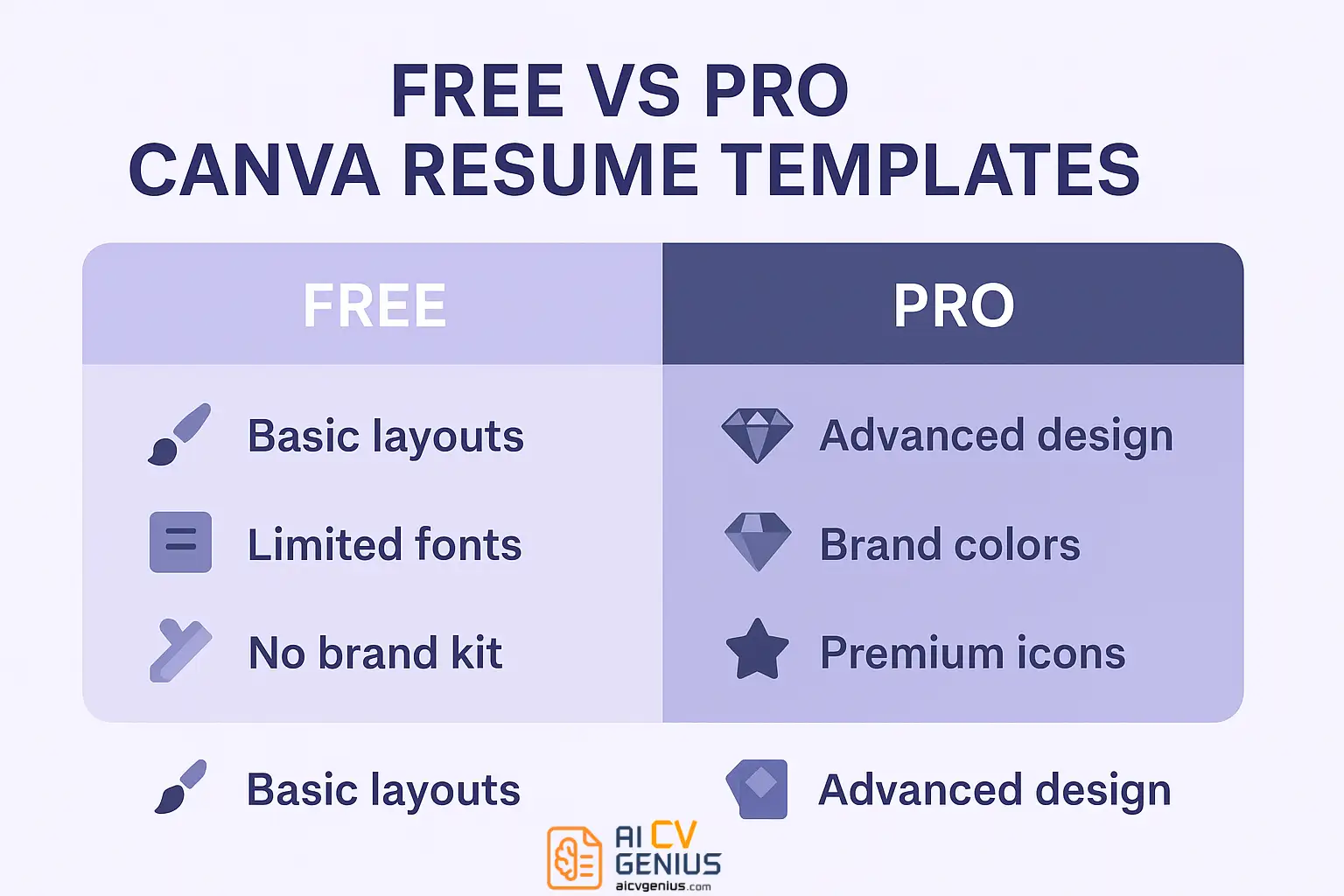
- Free vs Pro comes down to depth of customization: Free has a solid template library and basic exports, while Pro adds premium templates, brand kit control, better export options, and team tools.
- The workflow is simple and repeatable: Choose a template, replace placeholders, keep fonts and alignment consistent, add subtle personality, then export as PDF (Print) and preview spacing before sending.
- ATS safety needs intentional choices: Use standard section headers, avoid text inside images, keep the design light, and export a text-based PDF so systems can read it.
- Common Canva failures are predictable, so use the built-in checklists: Too many colors, bad margins, crowded sections, fancy fonts, sloppy alignment, and skipping proofread or file naming.
Let’s be honest – building a resume used to feel like homework. But thanks to tools like Canva, it’s now closer to art class. The Canva resume templates library lets anyone design a beautiful, professional document in minutes – no graphic design degree required.
Whether you’re applying for your first job or a senior position, Canva has something for everyone: minimalist layouts for professionals, colorful styles for creatives, and flexible templates that fit every role imaginable. This guide breaks down everything you need to know – from free vs. Pro features to design tips that make your resume both stunning and recruiter-friendly.
Why Canva Is a Game-Changer for Resume Design
In the past, creating a resume meant choosing between dull Word templates or messy formatting. Canva changed that by combining design freedom with simplicity. You can drag, drop, recolor, and export without touching a single line of code or formatting rule.
- ✅ Thousands of professionally designed templates.
- ✅ Built-in fonts, icons, and color palettes.
- ✅ Easy PDF export for job applications.
- ✅ Accessible on desktop, tablet, or phone.
The real power of Canva lies in balance – it’s easy for beginners yet flexible enough for creative professionals who want to make their resumes pop.
Free vs. Pro: What You Actually Get
Canva offers two main tiers: Free and Pro. The Free plan already gives you plenty, but the Pro version unlocks deeper customization and premium visuals that can make your resume truly stand out.
| Feature | Free | Pro |
|---|---|---|
| Template Library | Access to 250+ resume templates | Access to 1,000+ premium templates |
| Fonts & Colors | Standard fonts, limited color palette | Full font access + brand kit customization |
| Elements & Icons | Basic shapes and icons | Premium icons, illustrations, stock photos |
| Export Options | PDF standard quality | PDF print-quality + transparent backgrounds |
| Collaboration Tools | Single-user editing | Team sharing and version control |
For most job seekers, the Free plan is more than enough. But if you’re a designer, freelancer, or someone who loves visual storytelling, Canva Pro gives your resume an extra layer of polish.
How to Create a Resume in Canva (Step-by-Step)
Step 1: Search for Resume Templates
Type “Resume” into Canva’s search bar, and you’ll see thousands of results. Use filters like “Professional,” “Minimalist,” or “Creative” to narrow down your options. If you’re applying for a corporate job, avoid overly colorful designs – clarity wins over flair.
Step 2: Customize the Template
Click any template to start editing. Replace text blocks with your information: name, job title, contact info, and sections like Summary, Experience, Skills, and Education.
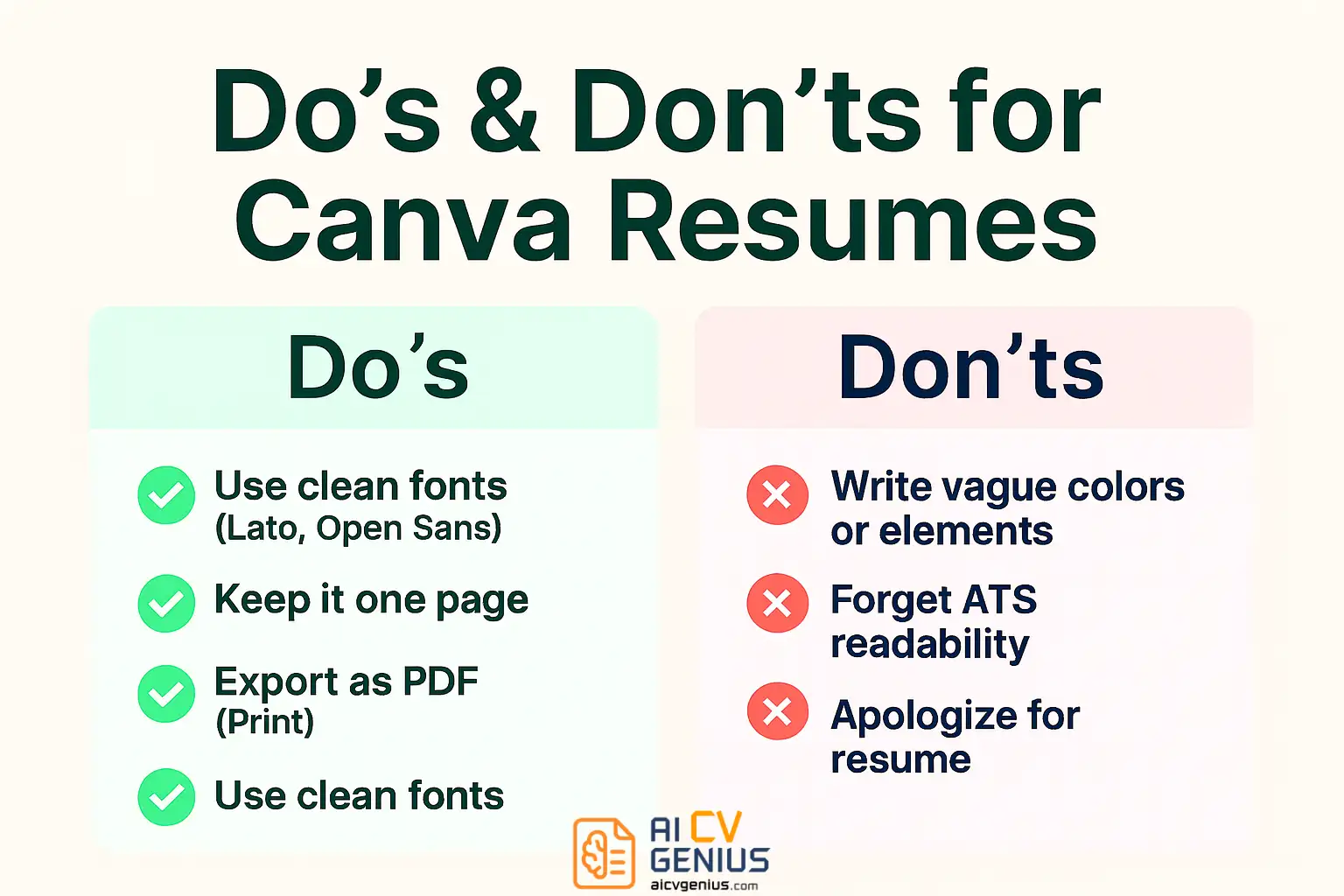
- ✅ Keep fonts consistent (Lato, Open Sans, or Poppins work well).
- ✅ Align all text boxes neatly.
- ✅ Use brand or neutral colors – blue and gray look polished.
Step 3: Add Your Personality
Want to stand out? Add subtle color highlights or icons. A simple banner or line accent can make your design memorable without distracting from your content. Canva’s drag-and-drop interface lets you test combinations quickly.
Step 4: Export as PDF (Print Quality)
When finished, click “Share → Download → PDF (Print).” This ensures crisp text, consistent spacing, and the correct color profile for recruiters printing or scanning resumes.
Pro tip: Always preview your file after downloading. Double-check margins and spacing before sending it out.
Best Canva Resume Templates (Free & Pro)
Modern Professional (Free)
A clean layout with two-column design – perfect for marketing, business, or HR roles. It’s modern but not loud, with subtle section headers that guide the eye.
Minimalist Blue (Free)
Ideal for entry-level applicants. Focuses on readability and clean typography, using blue accents to create a calm, trustworthy tone.
Creative Gradient (Pro)
A soft gradient header that makes your name pop – great for designers, creatives, and content specialists. Works beautifully in PDF format.
Corporate Classic (Pro)
Tailored for formal sectors like finance or law. Includes elegant serif fonts and smart spacing that screams professionalism.
Bold Statement (Pro)
For creative industries that love personality. A single accent color ties the layout together while keeping ATS readability intact.
All of these templates are fully editable – you can tweak colors, fonts, and layouts to match your brand identity.
How to Make Canva Resumes ATS-Friendly
ATS (Applicant Tracking Systems) can sometimes struggle with graphics-heavy resumes. Here’s how to make sure your Canva resume passes both humans and bots:
- ✅ Use clear section headers: “Experience,” “Education,” “Skills.”
- ✅ Avoid text embedded in images – ATS can’t read that.
- ✅ Export as standard PDF (not image-based).
- ✅ Stick to basic fonts supported across systems.
Canva templates are beautifully designed, but a few adjustments ensure they stay recruiter-approved too.
Common Mistakes to Avoid in Canva Resumes
- ❌ Using too many colors – your resume isn’t a rainbow.
- ❌ Forgetting margins – edges can cut off during printing.
- ❌ Overcrowding sections – leave breathing space.
- ❌ Choosing fancy fonts that are hard to read.
- ❌ Ignoring alignment – clean lines build trust subconsciously.
Pros & Cons of Canva Resume Templates
| Pros | Cons |
|---|---|
| ✅ Easy to use with drag-and-drop editing. | ❌ Some templates look overly designed for corporate use. |
| ✅ Modern, creative, and visually appealing. | ❌ PDF files can be large if not compressed. |
| ✅ Access to thousands of free templates and icons. | ❌ Requires manual ATS optimization for complex designs. |
| ✅ Cloud-based – accessible from anywhere. | ❌ Advanced features require Canva Pro subscription. |
Checklist Before Downloading Your Canva Resume
- ✅ Proofread all sections twice.
- ✅ Check text alignment and spacing.
- ✅ Name your file properly (Firstname_Lastname_Resume.pdf).
- ✅ Ensure all icons or logos align with brand tone.
- ✅ Test on both desktop and mobile screens.
Bonus Tips for Canva Power Users
- Use the “Brand Kit” in Canva Pro to keep your colors and fonts consistent across all job materials.
- Try duplicating your resume and creating multiple versions for different industries.
- Add hyperlinks to your LinkedIn or portfolio – PDFs support clickable links.
- Experiment with subtle graphics or borders for creative flair, but always maintain white space.
FAQs
Final Thoughts
Canva made resume building creative again. You no longer have to settle for plain black text on white paper. With a well-chosen template and a few tweaks, you can create a resume that feels modern, personal, and polished – all in under an hour.
Whether you use the free or Pro version, what matters most is clarity. A good design complements your words – it never overshadows them. Choose a layout that fits your field, tell your story with confidence, and send your application knowing it looks exactly the way you intended.
Ready to explore designs that recruiters love? Visit Resume Templates Finder to browse curated Canva-style resumes, or read our Resume Templates Guides for step-by-step customization tips. For more creative career insights, check Career Resources.
Your resume isn’t just a document – it’s your design story told in one page.